
Finally! Update 2.0 of Power Node is here. I’ve been working for almost one year on the update – so it does add quiet a bit of new things. There’s many under-the-hood changes but also quiet a few new front facing features.
In this blog post I will highlight some of the most important changes…
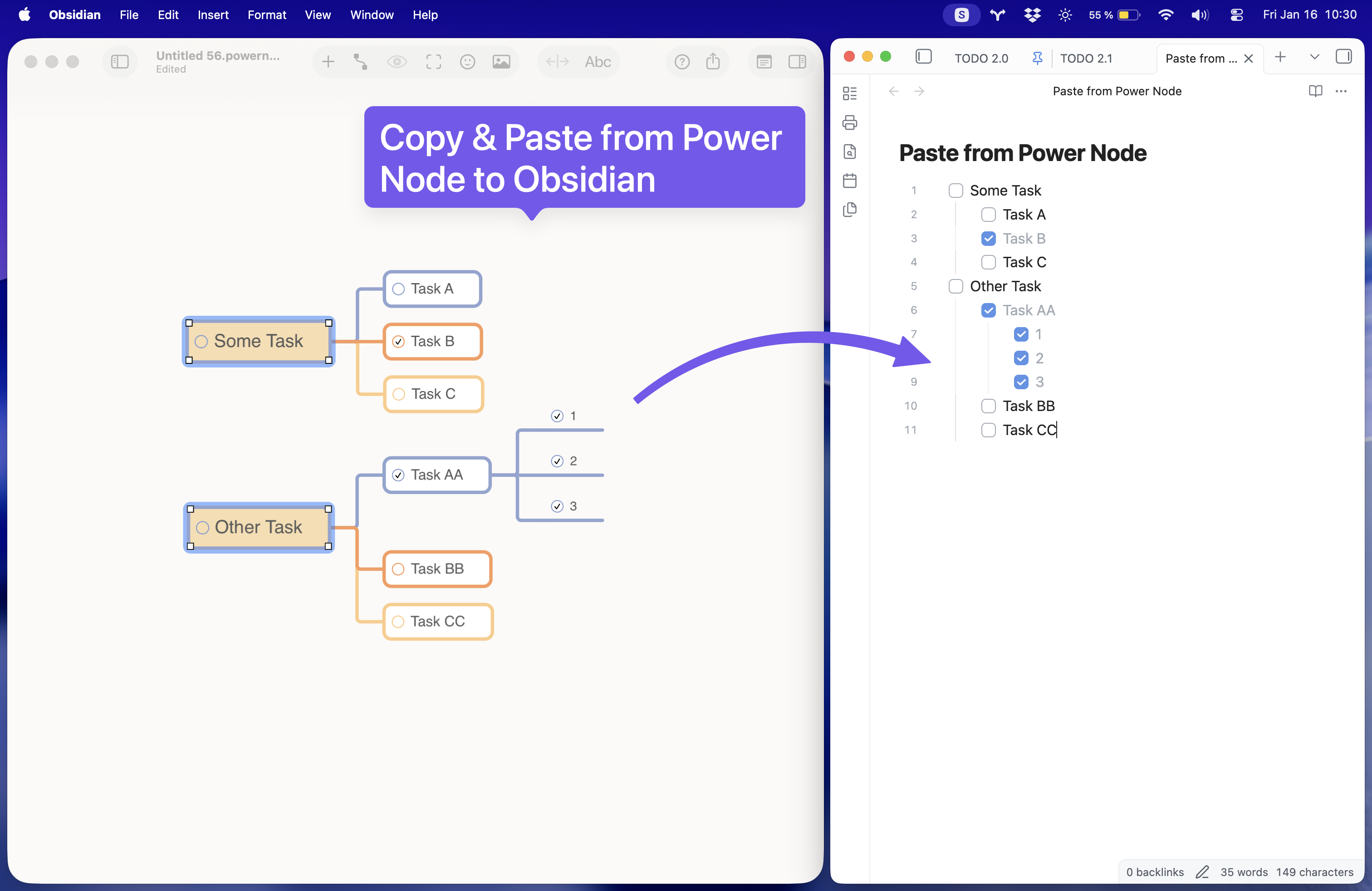
The most important additions are task nodes, node folding and an outline view. Under the hood I reworked the copy-and-paste code to work better with 3rd party apps. You can now easily copy and paste between Power Node and most other text-based apps. Copying a node tree in Power Node will now also write a hierarchical plain text representation to the pasteboard that many other apps will understand.
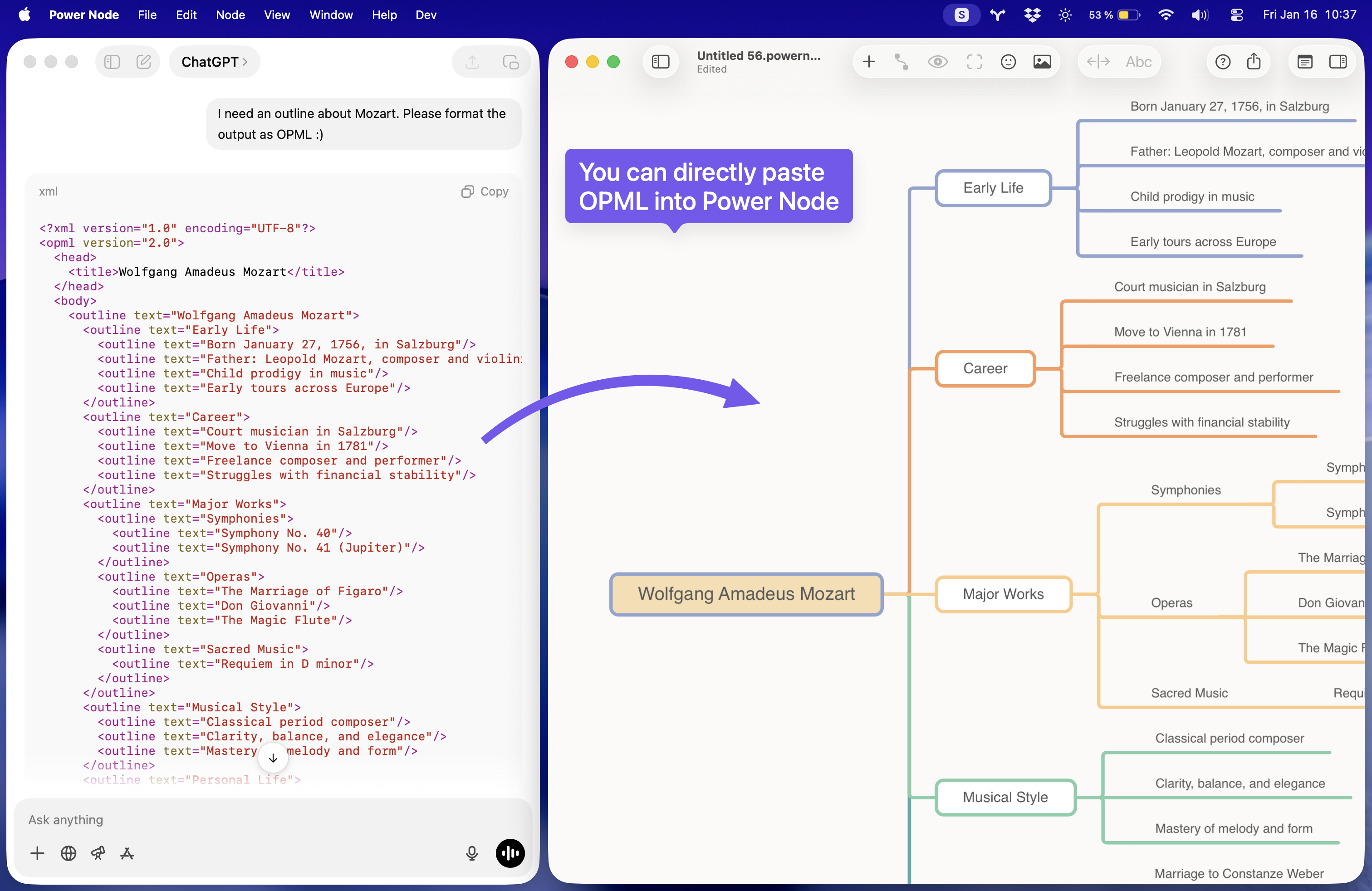
Power Node will also write an OPML representation to the Pasteboard and will also parse OPML when you paste it into the app. This allows for effortless interoperability with AI Chatbots. You can ask your AI the generate an outline about a certain topic and format it as OPML which you then can directly paste into Power Node.
On the front facing side of things there’s three new main features. Task nodes (as shown above), a text-centric outline view and node folding.
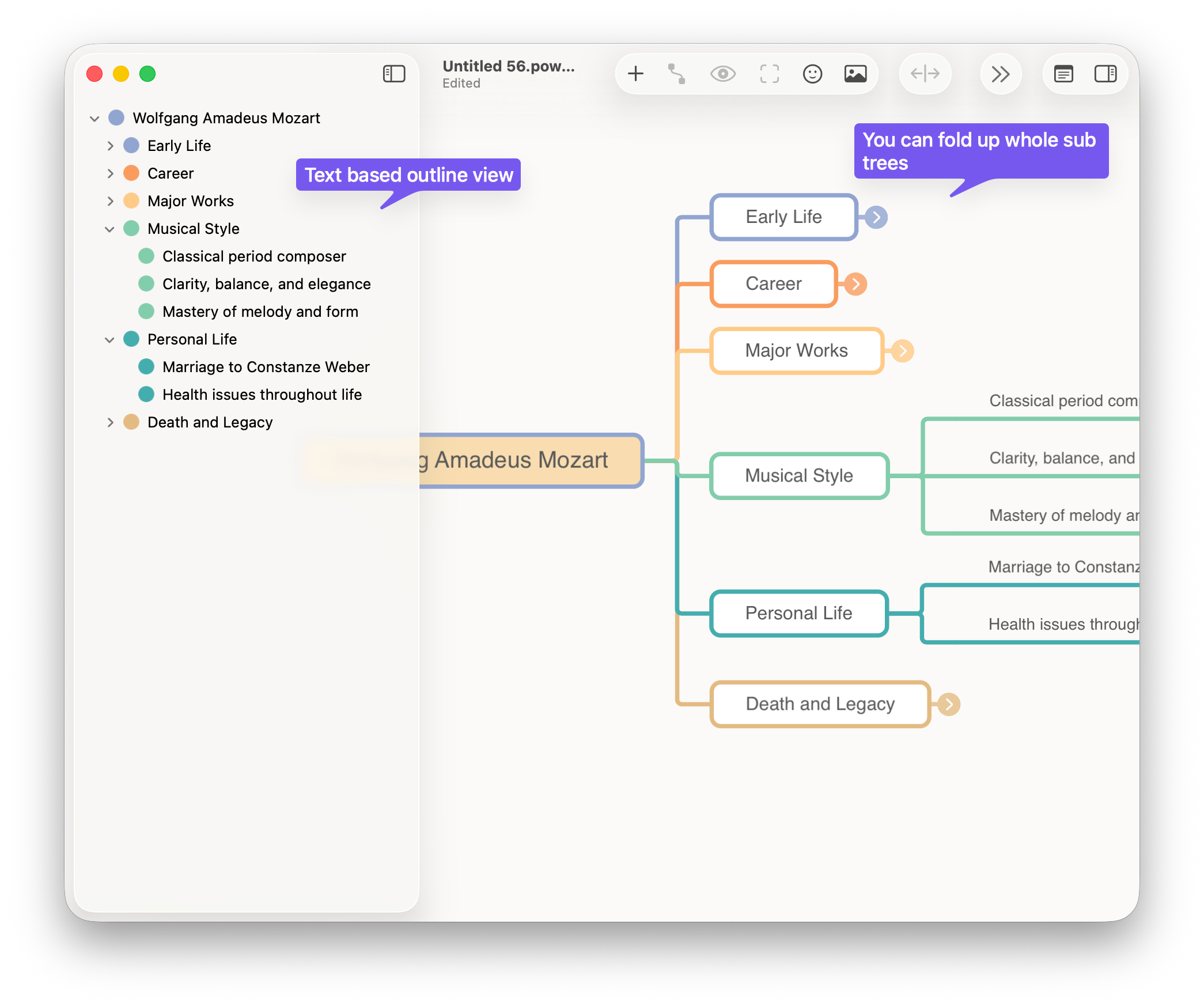
Node folding allows you to fold up whole node trees to get them out of the way while the text based outline makes it easy to keep an overview over large mind maps.
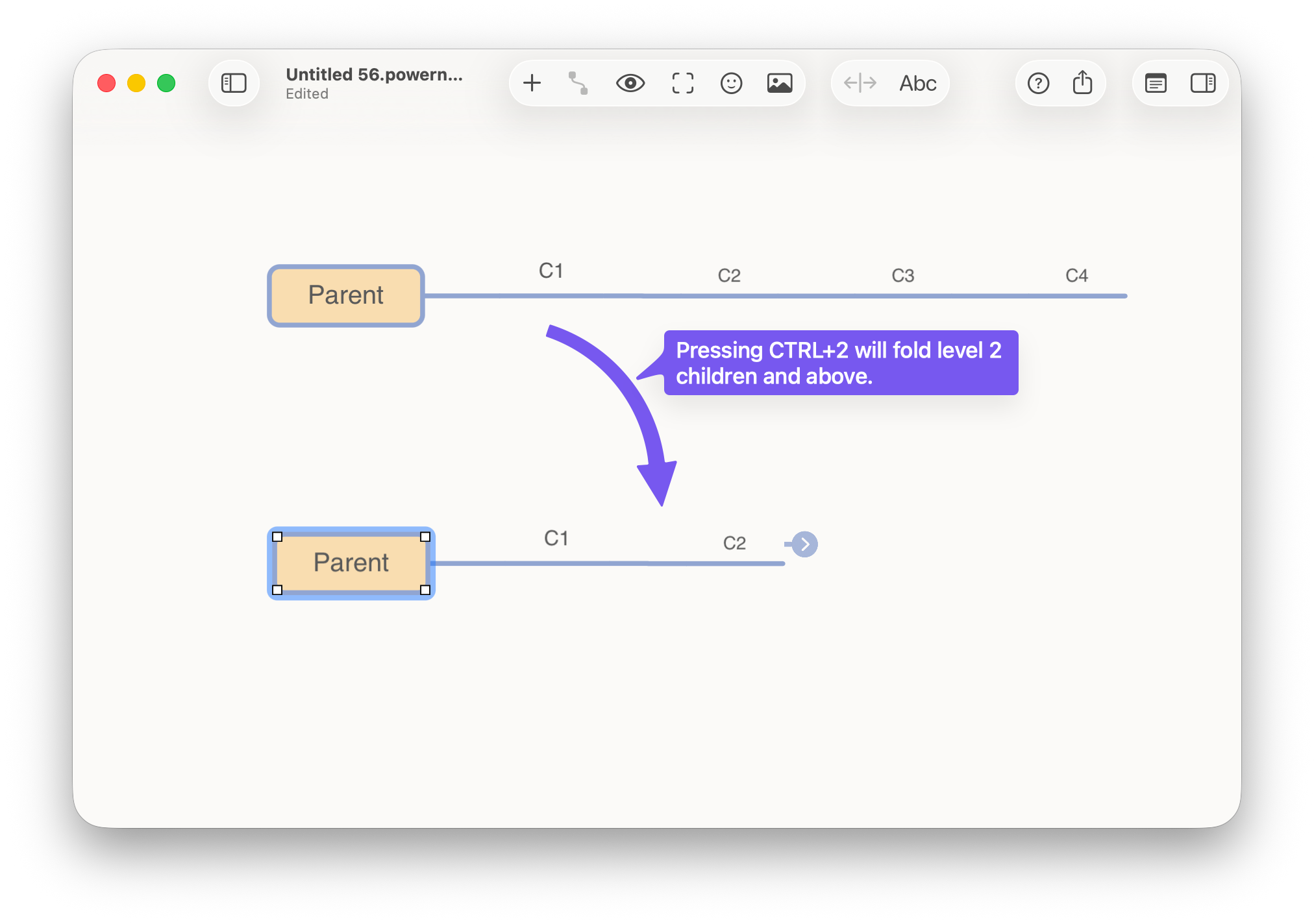
Node folding comes with a hierarchical feature – which means that pressing CTRL+1..9 will fold/unfold all nodes up to that level. So when you have a node with 4 levels of children (Parent->C1->C2->C3->C4) pressing CTRL 2 will fold up C2 and its children.
For users who work a lot with keyboard shortcuts Power Node 2.0 introduces the direct command mode. This mode can be enabled in the settings panel and will make it so that you can trigger most of the keyboard shortcuts which require CTRL as a modifier just by pressing the unmodified main key. Meaning for the folding example above in direct command mode you would need to press only the 2 key. (No need to press CTRL anymore). Toggling task-state can be performed by pressing the X key vs CTRL+X. Etc.
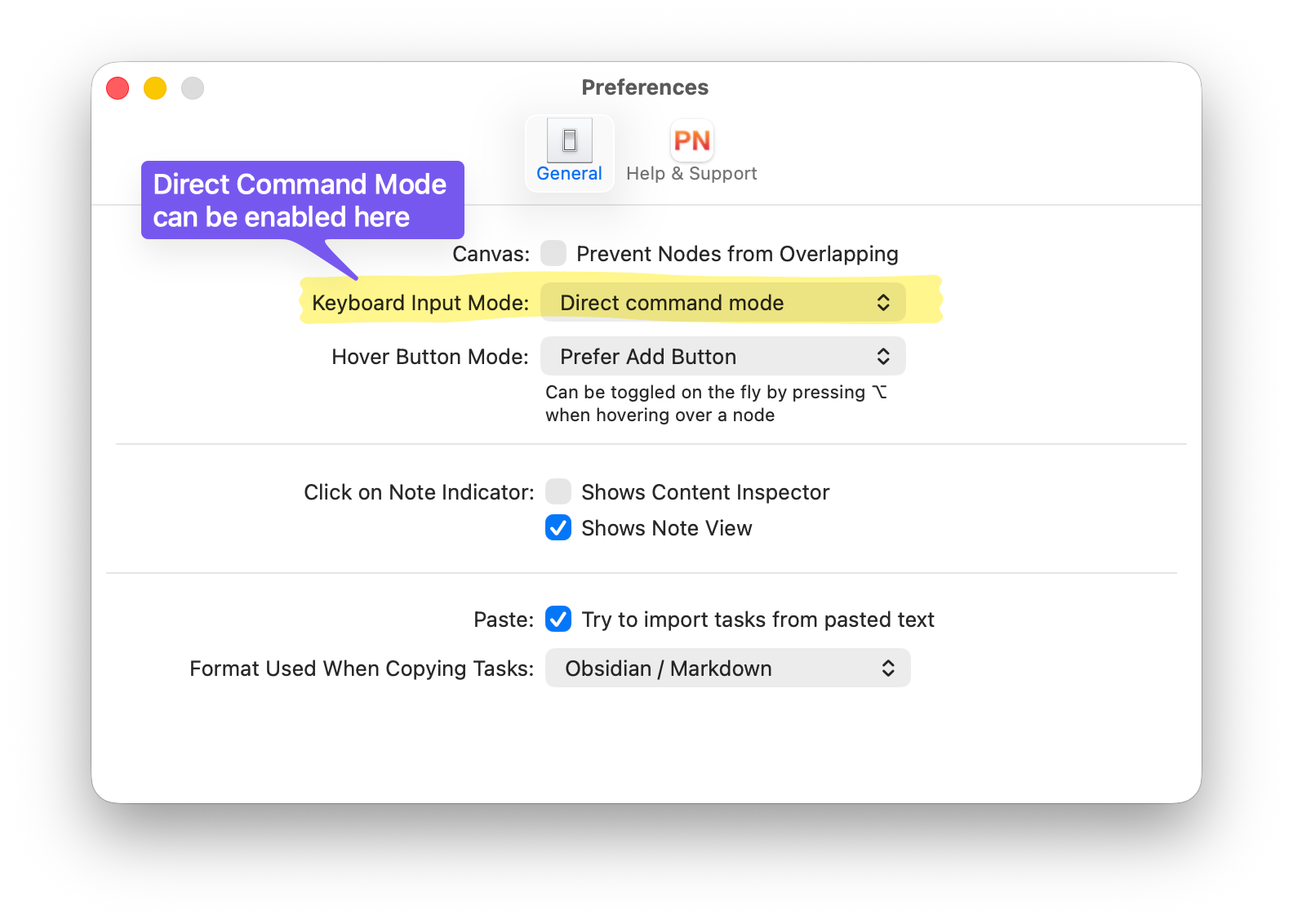
The trade off is that to edit a node’s title you will have to press the SPACE key first to enter edit mode. To find which commands are affected by this mode just open the “Node” menu and look at the shortcuts. Any shortcut that includes CTRL (^) can be used directly in the direct command mode without having to press CTRL.
I also had to come up with a new app icon (because of macOS 26) and the toolbar got re-designed somewhat to make it work with the macOS 26 “Liquid Glass” UI. There’s also some smaller changes like a note indicator for nodes with a note attached, a floating note window, the app now remembers the last layout you used, etc.
If you have any questions or feature requests don’t hesitate to contact me at support@suborbital.io